
FamilyKeeper Parental Control
Reason LabsParenting
3.1150.00 Reviews
- Version
- 1.12.2
- Installs
- 100.00K
- Age Rating
- Everyone
Screenshots
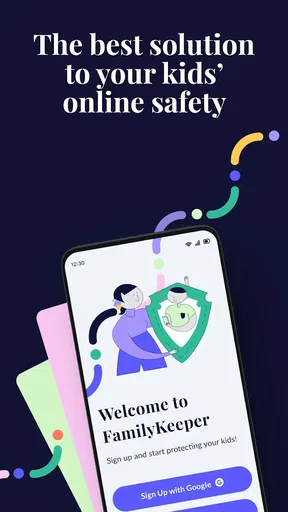
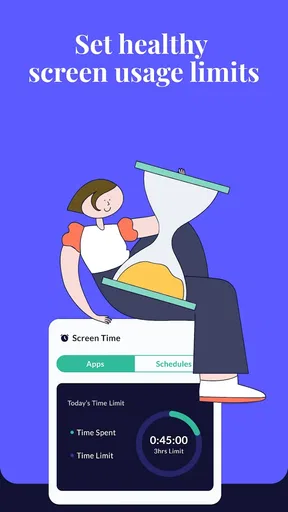
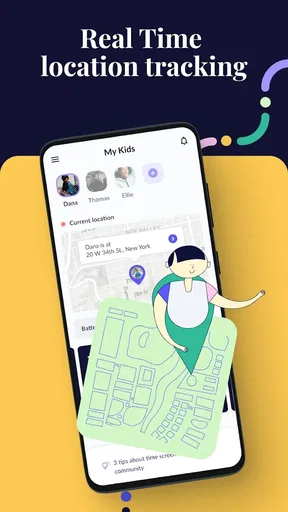
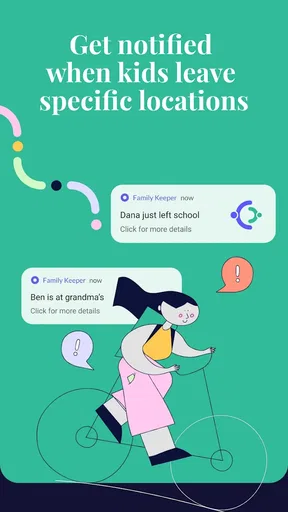

Our Review of FamilyKeeper Parental Control
 Analysis by Appyee
When a child’s phone starts affecting homework, bedtime, and family plans, the difficult part is usually not deciding that limits are needed. The difficult part is turning that decision into something practical, consistent, and understandable for everyone involved. I tested FamilyKeeper Parental Control from Reason Labs with that everyday problem in mind, treating it as a parenting app rather than a simple screen-time timer. Its purpose is to bring screen-time management, location tracking, app monitoring, and blocking into one place.
That combination makes it appealing to parents who are tired of switching between device settings and separate family-safety tools. It also creates a responsibility for the user: this is not an install-and-forget app. The useful results depend on how carefully the parent sets expectations, checks information, and communicates changes to the child. In my experience, FamilyKeeper works best as part of a family routine, not as a substitute for one.
From a worried parent to a workable daily routine
The starting condition for many families is familiar. A child may be spending too much time in games, using apps at unsuitable moments, or travelling between school and home without giving parents a clear picture of where they are. Parents may also want one view of several concerns instead of managing each issue separately. FamilyKeeper addresses that need by combining parental controls with location and app oversight.
The app is free to install, which makes trying the basic experience less intimidating. It is rated for Everyone and runs on Android devices using version 6.0 or later. The current version is 1.12.2, so compatibility is worth checking before planning a household setup, especially if an older phone is being reused for a child.
Reason Labs has positioned the product in the parenting category, and that matters because the app is built around a parent-child relationship rather than individual productivity. I would not approach it as a personal focus tool for an adult. Its value comes from giving a parent a way to organize boundaries around a child’s device use and to follow up when those boundaries need adjusting.
The first practical step is to decide what problem needs solving. If the main issue is bedtime, there is little benefit in immediately changing every available control. If the concern is an unfamiliar app, app monitoring and blocking deserve attention first. If the concern is a child travelling alone, location tracking may be the priority. Starting with one clear objective makes the setup easier to explain and reduces the chance that the child experiences the app as a collection of unexplained restrictions.
The strongest workflow is gradual: observe the problem, choose one boundary, explain it, then review the outcome. That approach is more useful than turning on every control at once. A parent can see whether the chosen rule solves the real issue or merely creates a new argument about access.
Setting expectations before touching the controls
Before configuring FamilyKeeper, I would tell the child what is changing and why. This is especially important when location information and app activity are part of the arrangement. A child is more likely to cooperate when the purpose is safety or a clearly agreed routine, rather than feeling that the phone has become a hidden surveillance device.
A useful conversation can be very specific: entertainment stops during homework, certain apps are unavailable overnight, and location sharing is connected to travel or pickup plans. The exact boundaries will differ by family, but the principle is the same. The parent should know what outcome they want before opening the app, and the child should know what outcome is expected afterward.
This preparation also helps with handoffs between adults. In a two-parent household, or when another caregiver helps after school, the family needs a shared understanding of the rules. Otherwise, one adult may assume an app is blocked while another promises access, leaving the child to negotiate between inconsistent instructions. FamilyKeeper can centralize control, but it cannot resolve disagreement between caregivers.
Building the first control plan
Once the goal is clear, the next stage is to use the app’s screen-time and app-management functions in a focused way. I would begin with the child’s normal day rather than an idealized schedule. School, commuting, meals, homework, sports, and family time all create different needs. A restriction that looks sensible on paper may be awkward if it blocks a useful communication app during a journey or leaves no flexibility for a changed evening plan.
App monitoring is particularly useful when the parent does not yet know which application is causing the trouble. Instead of assuming that all phone use is equally problematic, monitoring can help identify whether the problem is concentrated in one game, a social app, or a pattern of late-night use. That distinction allows a narrower response. Blocking one unsuitable app may be more reasonable than treating the entire phone as the enemy.
Blocking is also where I would be most careful. A blocked app can remove temptation, but it may also interrupt a child’s legitimate activity. Before applying a block, I would check whether the app is used for school communication, transport, authentication, or contacting family. The best control is not always the strongest one; it is the one that addresses the specific risk without creating unnecessary workarounds.
Screen-time management works in a similar way. A broad reduction may be appropriate when the phone is dominating the day, but a family often gets better results by separating recreational use from necessary use. The parent should also decide what happens when plans change. A child who has finished homework early, is travelling with a team, or is waiting for a delayed pickup may need a temporary adjustment. A system that allows no room for ordinary life can encourage arguments or attempts to bypass the rules.
Using location tracking as a safety tool
Location tracking adds a different kind of information to the workflow. Screen-time controls answer, “What is happening on the phone?” Location tracking addresses, “Where is the child during an agreed part of the day?” Those questions should not be treated as interchangeable. A parent may need location information for a walk home without wanting to inspect every aspect of the child’s digital activity, or may need app limits when the child is safely at home.
I see location tracking as most useful around transitions: leaving school, arriving at practice, travelling between separated households, or meeting a parent at a public place. In those situations, the information can reduce unnecessary calls and help a caregiver react when a planned handoff does not happen as expected. It is less helpful when used as a replacement for basic communication or as a reason to check constantly without a clear purpose.
That leads to an important handoff. The parent may receive useful information, but the next action still belongs to a person: send a message, call the child, contact another caregiver, or wait for the agreed arrival time. FamilyKeeper can support that chain, but it does not make the decision for the family. Parents should avoid assuming that a location view automatically explains why a child is somewhere or whether they are safe.
For younger children, a parent may be comfortable taking the lead. Older children and teenagers usually need a more explicit agreement about when location information is checked and what happens if the phone is unavailable. This is not merely a question of trust. It is a practical way to prevent the safety tool from becoming a source of constant conflict.
How the parent-child handoff feels in daily use
The most important handoff is from the parent’s setup to the child’s actual day. A rule only succeeds if the child understands what it means at the moment it matters. If an app becomes unavailable during homework, the child should already know whether that is a fixed boundary, a temporary pause, or something that can be changed after a task is completed.
I recommend introducing one change at a time and watching the first few days closely. This gives the parent a chance to distinguish technical friction from resistance. If the child cannot use a needed feature, the rule may be too broad. If the child repeatedly reaches for the same distracting app, the original concern may be valid but require a clearer routine around it.
Another useful handoff is between monitoring and conversation. App activity can point to a pattern, but it does not explain motivation. A child may be using a game to stay connected with friends, watching videos because homework is stressful, or opening an app simply because they are bored. The parent should use the information as a prompt for discussion rather than as a complete verdict about behavior.
This is where FamilyKeeper differs from relying only on built-in phone controls. Device-level settings can be perfectly adequate for a parent who wants a simple time limit or a bedtime restriction. FamilyKeeper is more attractive when the household wants those controls considered alongside app oversight and location information. The trade-off is that a broader system requires more setup, more communication, and more care when rules change.
A realistic after-school example
Imagine a child leaving school, stopping at a sports practice, and returning home later than usual. The parent wants to know that the child reached practice, prevent recreational apps from taking over homework time, and keep the evening predictable. A sensible workflow would begin with the location function around the travel handoff, then use app monitoring to understand what typically interrupts homework, and finally apply a focused block or screen-time boundary rather than restricting everything.
When the child arrives, the parent can ask whether the routine worked. If the child needed a communication app that was unavailable, that is a setup problem to correct. If a particular entertainment app repeatedly derailed homework, the parent has a concrete topic for the next conversation. The result is not simply “more control”; it is a clearer connection between a family concern, an action in the app, and an observable outcome.
In this scenario, the location feature is useful because it supports a transition, while the app controls support the later routine. Treating both as one giant surveillance exercise would be less helpful. The value comes from assigning each function a limited job and making the handoff between them understandable.
What the results can and cannot tell you
After the first setup period, I would judge the app by outcomes rather than by how many controls are enabled. Is bedtime calmer? Is homework less interrupted? Are pickup arrangements easier? Does the child understand the rules well enough to follow them without constant reminders? These are better measures than simply seeing a dashboard filled with activity.
FamilyKeeper’s combined approach can be convenient for families that want screen-time management, location tracking, app monitoring, and blocking in one parenting tool. It may save the parent from maintaining several unrelated routines. The product has also attracted over one hundred thousand installs, which suggests that it has reached a meaningful audience, although popularity alone does not guarantee that its approach will suit every household.
The average rating is 3.1, with ratings from a few hundred users and reviews from around one hundred and fifty people. I would read that as a reason to keep expectations realistic. The app may be useful, but the experience is unlikely to be equally smooth for every family or every device. Parents should allow time for setup and observation instead of assuming that installation immediately produces a polished family routine.
Cost is another part of the result. The app is free to start, while in-app purchases range from about ten dollars to around one hundred and twenty dollars per item. That makes it important to understand which functions the household actually needs before committing to a purchase. A parent seeking only a basic bedtime limit may find the phone’s built-in controls more economical and simpler. A family that values the combined workflow may consider the broader tool worthwhile, but should still evaluate the ongoing value against how often those features are used.
Where the workflow becomes difficult
The first point of friction is complexity. Bringing several parenting functions together sounds convenient, but it also means more decisions. Parents must decide what to monitor, what to block, when location information matters, and how to handle exceptions. Families that want a single uncomplicated switch may find the broader approach excessive.
The second difficulty is trust. If a child believes the app is being used secretly or unpredictably, even a technically useful control can damage cooperation. The solution is not simply to remove every boundary. It is to explain the purpose, keep rules proportionate, and revisit them as the child becomes more independent. FamilyKeeper can support a gradual shift from direct control toward shared responsibility, but that shift has to be managed by the parent.
The third issue is the danger of reading too much into app activity or location. A record can show that an app was used or that a device was in a place, but context still matters. Parents who respond to every unexpected detail with punishment may create more secrecy rather than better habits. I would use the app to identify patterns worth discussing, not to conduct an endless investigation.
There is also the practical question of exceptions. Real schedules change, and a child may need access outside the normal routine. A parent should know in advance how to handle a late practice, a family trip, or an urgent communication need. If changing a rule becomes a lengthy process, the family may abandon the system altogether. This is why a small, clearly defined first setup is safer than an elaborate collection of restrictions.
Who should choose it, and who should look elsewhere
I would recommend FamilyKeeper to parents who want a connected view of device habits and child location, especially when the household is managing several recurring transitions. It is a good fit for someone willing to explain boundaries, review whether they are working, and adjust them instead of treating the app as an automatic disciplinarian.
I would be more cautious about recommending it to parents who only need one basic function. If the sole goal is reducing evening phone use, the standard controls already available on many phones may be easier to understand and maintain. If the family needs a highly specialized safety platform, a tool focused primarily on that particular requirement may offer a better match than a broader parenting app.
Teenagers may also respond differently from younger children. A parent who wants strict control without discussion may encounter resistance, while a parent who frames the app as part of an agreed safety and time-management plan has a better chance of preserving cooperation. The older the child, the more important it becomes to explain when the controls apply and when greater independence will be considered.
My final assessment after following the full workflow
FamilyKeeper Parental Control is most convincing when viewed as a coordination tool for family routines. Its combination of screen-time management, location tracking, app monitoring, and blocking can connect several concerns that parents often handle separately. I especially like the idea of using each function for a defined moment: location for travel handoffs, monitoring to identify a real source of distraction, and blocking or time limits for a specific boundary.
It is not a magic solution, and I would not present it that way to a friend. Setup requires thought, rules need communication, and the app’s middling average rating suggests that users should approach it with practical expectations. The free entry point makes experimentation easier, but the in-app purchase range means families should decide whether the combined features justify spending more than they would on built-in phone settings.
My recommendation is to start narrowly. Choose one everyday problem, explain the plan to the child, use the relevant control, and review what changed. If that process makes travel safer or evenings calmer, expand carefully. If it creates more confusion than clarity, step back and compare it with simpler device controls. FamilyKeeper is at its best when it helps a family make a clear agreement visible and manageable, not when it replaces the agreement itself.
Verdict
Strengths of FamilyKeeper Parental Control
- Real-time GPS location sharing helps parents check where children are.
- Geofencing alerts notify you when a child enters or leaves a chosen area.
- SOS features can provide quick access to emergency contacts.
- Activity reports make it easier to identify unusual routines or changes.
- Supports communication between family members within the same app.
Limitations of FamilyKeeper Parental Control
- Many useful monitoring features may require a paid subscription.
- Continuous location tracking can noticeably reduce the child’s battery life.
- Some functions depend on reliable GPS, mobile data, and background permissions.
- Older children may consider constant monitoring intrusive or uncomfortable.
- Setup can take time, especially when configuring multiple family devices.
Similar Picks in This Category
View All
Family Space
Motorola Mobility LLC.3.9

شرطة الأطفال - مكالمة وهمية
Oub Apps4.1

Findmykids: Parental Control
LETEM LTD4.6

Pregnancy + | Tracker App
Philips Electronics UK Limited4.8

Policía de niños - para padres
Kids police4.7

Pregnancy App
Amila4.9
Frequently Asked Questions
What is FamilyKeeper Parental Control and who is it designed for?
FamilyKeeper Parental Control is a family safety and monitoring app designed to help parents understand and manage their children’s digital and physical activities. Depending on the features available in the current version and the child’s device, parents may be able to view location information, receive alerts, manage screen habits, and communicate with family members. It is mainly intended for parents or guardians who want additional supervision tools rather than completely replacing open conversations about online safety.
What features does FamilyKeeper Parental Control offer?
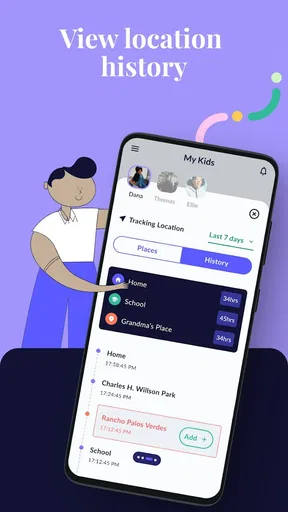
The app typically combines several parental-control functions in one dashboard, such as GPS location tracking, location history, geofencing alerts, activity or usage monitoring, and notifications when selected safety events occur. Some versions may also include options for managing contacts, checking device status, or setting family routines. Available tools can vary between Android and iOS, account types, and subscription plans, so reviewing the official feature list before downloading is recommended.
Does FamilyKeeper Parental Control work on both Android and iPhone?
FamilyKeeper is intended for families using mobile devices, but the exact experience may differ between Android and iOS. Certain monitoring functions require permissions that each operating system handles differently, and some features may be limited on iPhone compared with Android. Before installation, check that the parent and child devices meet the app’s requirements, use supported operating-system versions, and have the necessary companion applications or accounts installed.
Is FamilyKeeper Parental Control free to use?
The app may be available to download without an upfront charge, but advanced monitoring and safety tools can require a subscription, trial, or in-app purchase. Pricing, trial duration, renewal terms, and feature limits may change over time or vary by region and platform. Parents should read the payment screen carefully, especially the automatic-renewal conditions, before starting a trial or entering billing information.
Is it safe and appropriate to use FamilyKeeper to monitor a child?
FamilyKeeper can be useful for location awareness and digital safety, but responsible use is essential. Parents should explain what is being monitored, use the app according to local laws, and avoid treating tracking as a substitute for trust and communication. Because the service handles sensitive information such as location and device activity, review its privacy policy, permissions, data-sharing practices, and account-security options before connecting a child’s device.
